Epson — L382 Waste Ink Pad Reset
Run the Adjustment Program – Launch the program as Administrator (right-click → Run as administrator).
Select your printer – Choose “Epson L382” from the model list. Click “Select” or “OK.”
Access waste ink counter – Navigate to “Waste ink pad counter” or “Protection counter” in the menu.
Read current values – Click “Check” to see the counters for “Main pad” and “Borderless pad” (usually near 100%).
Reset both counters – Check the boxes next to “Main pad counter” and “Borderless pad counter.” Click “Initialization” or “Reset.”
Verify reset – Turn the printer off manually, wait 10 seconds, and turn it back on to normal mode. The error should be gone.
Test print – Print a nozzle check pattern to confirm functionality.
To reset the Epson L382, you will generally need two things:
Epson does not provide an official free reset tool for end users. However, third-party utilities have been developed that communicate directly with the printer’s EEPROM (memory chip) to reset the counter.
The most well-known for Epson printers is WIC Reset Utility (WIC = Waste Ink Counter). Here is the step-by-step process:
Step 1: Download the WIC Reset Utility from the official developer’s website. Be careful—many fake or virus-laden copies exist on torrent sites. Use a trusted source.
Step 2: Install the software on a Windows PC (Mac support is limited; use Windows for best results).
Step 3: Connect your Epson L382 via USB cable. A network connection may not work reliably for this process.
Step 4: Turn on the printer. It will likely still be in “Service Required” error mode.
Step 5: Run the WIC Reset Utility as Administrator.
Step 6: The utility will detect your printer model. Click “Read” to see the current waste ink counter value.
Step 7: Click “Reset”. The utility will ask for a reset key, which typically requires a small payment (around $10–15 USD). This one-time fee is much cheaper than a service center.
Step 8: Enter the key. The utility will reset the counter to zero.
Step 9: Turn the printer off, wait 10 seconds, and turn it back on. Your Epson L382 should function normally again.
Important: Resetting the counter without physically checking the pad can lead to a real ink leak. If you have printed heavily for years, you should open the printer and inspect/replace the pad before resetting.
To reset the waste ink pad on an Epson L382 , you must address both the internal software counter physical saturation of the pads to prevent ink leakage. 1. Understanding the Error
The "Service Required" message appears when the printer’s internal counter reaches its limit, signaling that the porous pads used to collect excess ink during cleaning are full. Epson officially recommends contacting Epson Support
for professional service, as they do not recommend cleaning the pads for reuse. CompAndSave 2. Software Reset (WIC Reset Utility)
You can manually reset the digital counter using third-party tools like the WIC Reset Utility Step 1: Download & Install: Download the tool and connect your printer via USB. Step 2: Check Counters: Select the
model and click "Read waste ink counters" to confirm they are at 100%. Step 3: Reset:
Click "Reset waste ink counters." This usually requires purchasing a one-time "Reset Key". Step 4: Restart: epson l382 waste ink pad reset
Once the utility confirms the reset, turn your printer off and then back on to clear the error light. 3. Physical Replacement
Resetting the software without replacing the pads can cause ink to overflow and damage your desk or the printer's electronics. Locate the Pads:
The waste ink tank is typically at the back or bottom of the printer, held by a single screw.
You can find replacement pads or maintenance boxes on retailers like AliExpress DIY Alternative:
Some users carefully remove the pads, wash them thoroughly with water, and let them dry completely before reinserting, though this is not officially recommended. 4. Summary Table Action Required Tool Needed Software Counter Reset to 0% WIC Reset Utility or Adjustment Program Physical Ink Pad Replace or Clean Screwdriver & Replacement Pads the pads for this specific model? AI responses may include mistakes. Learn more
The "Waste Ink Pad" error on an Epson L382 (indicated by alternating flashing orange or red lights) means the internal counter has reached its limit
. You can reset this yourself using software tools to restore printer functionality. Method 1: Using the Epson Adjustment Program (Free)
This is a service tool used by technicians. Because it is unofficial software, your computer may flag it as a threat. Preparation
Disable your antivirus and Windows Defender temporarily, as they often block this utility. Connect your printer to your PC via a ; this will not work over Wi-Fi. Download and Run Download the L382 Adjustment Program (Resetter). Extract the files and run AdjProg.exe as an administrator. and choose under "Model Name". Particular adjustment mode Resetting the Counter Find and select Waste ink pad counter from the list and click Check the boxes for Main pad counter (and "Platen pad counter" if available). to confirm the current percentage. If it shows 100%, click Initialization
A prompt will ask you to turn off your printer. Power it down, then click on the screen.
Turn the printer back on; the blinking lights should be gone. Method 2: WIC Reset Utility (Paid/Trial) If the Adjustment Program is too complex, the WIC Reset Utility is a more user-friendly, third-party alternative. wic-reset.com
Here’s an informative guide for resetting the waste ink pad counter on an Epson L382 (an EcoTank all-in-one printer).
⚠️ Important Note:
The waste ink pad is a physical sponge that absorbs ink used during print head cleaning. When the counter reaches its limit, the printer stops working to prevent ink overflow.
Resetting the counter without replacing or cleaning the pad can cause ink leakage that may damage your printer or desk. Use this guide at your own risk.
The Epson L382 waste ink pad reset is not a myth—it is a practical, necessary skill for owners who want to keep their printer running for years. While the software reset (via WICReset or AdjProg) is straightforward, the physical health of the waste pad is paramount.
The Golden Rule: Reset the software only after you have verified the pad is not overflowing. If you are handy, install an external waste tank for a permanent fix. By following this guide, you can bypass Epson’s artificial lockout and save hundreds of dollars in service fees or replacement costs.
Remember: a reset without maintenance is a temporary bandage. Maintenance without a reset is pointless. You must do both.
Disclaimer: This article is for educational purposes only. Tampering with your printer may void your warranty. Proceed at your own risk. Always back up your printer settings before using third-party reset tools.
To reset the waste ink pad counter on an Epson L382 , you must clear the internal software counter that triggers the "service required" error. This error occurs because the internal ink pads, which soak up excess ink during cleaning cycles, are estimated to be saturated. Resetting the Counter with the Epson Adjustment Program This is the standard technical method to reset the
software counter. You will need a Windows PC and a USB connection to the printer.
Preparation: Ensure the printer is connected directly to your computer via USB (Wi-Fi resets are often unreliable). Open the Utility : Launch the Epson Adjustment Program (Reseter) for the Go to product viewer dialog for this item.
Select Printer: Click on the Select button to choose your printer model ( ) and the correct USB port. Adjustment Mode: Click on Particular Adjustment Mode.
Waste Ink Pad Counter: Find and select Waste Ink Pad Counter from the list, then click OK.
Verify Status: Check the box for Main Pad Counter and click Check. The software will show a percentage; if it is at 100%, the reset is necessary.
Initialize: Check the Main Pad Counter box again and click Initialize. Click OK when the confirmation prompt appears.
Power Cycle: The program will prompt you to "Please turn off the printer." Turn the printer off, then turn it back on after a few seconds. The error light should now be gone. Alternative: WIC Reset Utility Run the Adjustment Program – Launch the program
If you cannot find the specific adjustment program, the WIC (Waste Ink Counter) Reset Tool is a popular third-party alternative.
Trial Reset: You can often perform a one-time reset to 90% by using the code trial in the software's "Reset Waste Counters" section.
Full Reset: For a 0% reset, you typically need to purchase a one-time use digital key from sites like ResetKey.net or InkChip.net. Critical Hardware Maintenance
Important: Resetting the software counter does not physically clean the ink pads. If you reset the counter without addressing the hardware, ink will eventually overflow and leak out of the bottom of the printer.
Replace the Pads: You can purchase a replacement waste ink pad kit for the L382 online.
External Waste Tank: Many users choose to install an "External Waste Ink Bottle." This involves rerouting the internal waste tube into an external container, eliminating the need to ever replace the internal pads again.
To reset the waste ink pad counter on your Epson L382 , you must use specialized software to clear the internal counter that triggers the "service required" error. This error typically appears as alternating flashing red lights (paper and ink icons). Prerequisites Connection : Connect your printer to a Windows PC via ; Wi-Fi resets are generally not supported. : Temporarily disable antivirus and Windows Defender , as they may incorrectly flag resetter tools as threats.
Method 1: Using Epson Adjustment Program (Recommended Free Method)
This tool, often referred to as an "AdjProg," is a common choice for a full reset. Open the Tool Adjustment Program executable (e.g., AdjProg.exe ) as an administrator. Select Model from the Model Name list, and set the Port to Auto Selection or the specific USB port. Enter Maintenance Mode Particular Adjustment Mode Find the Counter : Locate and select Waste ink pad counter from the Maintenance list and click Check & Initialize Check the boxes for Main pad counter Platen pad counter to see current usage levels (often 100%). Check the boxes again and click Initialize : A prompt will tell you to turn off the printer . Turn it off, click
on the computer, then turn the printer back on to clear the error. Method 2: WIC Reset Utility
If you prefer a more user-friendly interface, you can use the WIC Reset Utility
: You can often perform a free "trial" reset that clears the counter to 90%. Full Reset : A full reset usually requires purchasing a one-time Important Maintenance Note
Resetting the software counter does not physically clean the pads. If the pads are saturated, ink may eventually leak from the bottom of the printer. For a permanent fix, you should physically replace the waste ink pads or install an external waste ink tank to collect excess ink.
To reset the waste ink pad counter on your Epson L382, you typically need specialized software because the printer locks itself once it reaches a pre-set limit to prevent ink leakage. Preparation
Connect via USB: Use a USB cable to connect the printer directly to your PC; wireless or network resets are often unreliable.
Disable Security: Temporarily disable Windows Defender or your antivirus software, as they may flag the reset program as a false positive.
Verify the Error: Ensure your printer is showing alternating blinking red lights (ink and paper icons), which confirms a service required error. Method 1: Epson Adjustment Program (Service Tool)
This is the standard technician tool used to "initialize" the internal counters.
Launch the Program: Open the AdjProg.exe or AdjProg-esk.exe file.
Select Model: Click Select, choose L382 as the model, and set the Port to Auto Selection or the specific USB port. Enter Adjustment Mode: Click on Particular Adjustment Mode.
Locate Counter: Find and select Waste ink pad counter from the list and click OK. Check and Initialize: Tick the boxes for Main Pad Counter and Platen Pad Counter. Click Check to confirm they are at 100%. Click Initialize to reset them to 0%.
Finalize: When prompted, turn the printer off and then back on to clear the error. Method 2: WIC Reset Utility
If you prefer a more user-friendly interface, you can use the WIC Reset Utility. Download: Get the latest version from WIC Reset.
Reset Key: This method usually requires purchasing a one-time "Reset Key".
Process: Connect the printer, click Reset waste counters, enter your key, and restart the printer when prompted. Important Warning Select your printer – Choose “Epson L382” from
Resetting the software counter does not physically clean the ink pad. If the pad is actually full of ink, it may eventually overflow and damage your desk or the printer's internal components. Consider replacing the physical waste ink pad or installing an external waste ink bottle for a long-term fix. How to Reset Ink Pad Epson L382, Epson L386 Printer?
Epson L382 is a reliable inkjet printer, but like many Epson models, it eventually triggers a "Waste Ink Pad" error that halts all printing operations. This error occurs when the internal counter, which tracks the ink used during maintenance cycles, reaches its maximum limit. Understanding the Waste Ink Pad Error
The waste ink pad is a sponge-like component designed to collect excess ink during print head cleaning and initial priming. To prevent ink from overflowing and damaging the printer's internal components, Epson includes a digital counter. When this counter hits 100%, the printer displays a message such as "The printer's ink pad is at the end of its service life" and flashes the ink and paper lights. Methods for Resetting the Counter
While Epson officially recommends taking the device to an authorized service center, users often employ software tools to reset the counter back to 0%.
Epson Adjustment Program (AdjProg): This is a specialized utility often used by technicians. It allows for "initialization" of the main pad counter, effectively clearing the digital lock.
WIC Reset Utility: A popular third-party alternative that supports various Epson models, including the L382. It typically requires a "reset key" to perform a full reset, though a "trial" key can sometimes reset the counter to 90% for a temporary fix.
Manual Maintenance: It is crucial to remember that resetting the software counter does not physically clean the pad. If the pad is saturated, it should be physically replaced or washed and dried to prevent actual ink leakage. Step-by-Step Reset Procedure
If using a standard adjustment program, the general process follows these steps:
Preparation: Connect the printer via USB (Wi-Fi resets are often unsupported) and disable any active antivirus software, as it may block the reset tool. Selection: Open the adjustment program and select the model and the correct USB port.
Initialization: Navigate to "Particular Adjustment Mode," select Waste ink pad counter, and check the "Main pad counter" box.
Completion: Click Initialize to reset the counter. You will be prompted to turn the printer off and then back on to finalize the process. Risks and Considerations
Using unauthorized software to reset a printer carries risks. Malware is common in unofficial download links, so users should proceed with caution and use trusted sources like InkChip or WIC Reset. Furthermore, failing to address the physical saturation of the ink pad after a software reset can lead to ink spills, which may permanently damage the printer's electronics or the surface it sits on.
These video tutorials provide visual guidance on using different software tools to reset the waste ink pad counter on your Epson L382:
To reset the waste ink pad counter for an Epson L382 , you must use specialized software to clear the internal counter that triggers the "Service Required" error. This error typically presents as blinking ink and paper lights and prevents the printer from functioning. Method 1: Using the Epson Adjustment Program (Service Tool)
This is the standard manual method for Windows users. It requires a USB connection. Preparation: Connect your L382 to your PC via USB.
Disable antivirus software and Windows Defender temporarily, as they often flag these utilities as false positives. Select Model:
Run the adjustment program (e.g., AdjProg-esk.exe) and click OK. Click Select and choose L382 as the model name. Navigate to Reset Menu: Click Particular Adjustment Mode. Select Waste ink pad counter from the list and click OK. Execute Reset:
Check the boxes for Main pad counter (and "Platen pad counter" if available).
Click the Check button to verify the current counter status (usually 100% full). Click Initialize to reset the counter to 0%. Restart:
Turn off the printer when prompted, then turn it back on to clear the error. Method 2: WIC Reset Utility (Alternative)
If you prefer a more automated tool or are using a different OS, the WIC Reset Utility is a popular third-party alternative. Cost: Often requires purchasing a one-time "Reset Key".
Procedure: Download the utility, select your printer, and click "Reset waste ink counters" using the purchased key. Critical Hardware Maintenance
Resetting the software counter does not physically clean the ink pads. If the pads are saturated, ink may eventually leak from the printer.
On the L382, when the counter reaches 100%, you see:
Epson’s official solution is to send the printer to an authorized service center, where technicians replace the physical pad and reset the counter—costing anywhere from 50% to 80% of a new printer’s price. For many users, this is uneconomical.

 Create a project on CADLAB.io
 Upload PCB design files
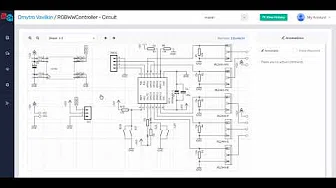 View schematics and board layouts
 Visual schematic and layout diff
 Design annotations
 Organizations and project members
 GitHub integration
 GitHub Chrome extension